
Table of Contents
Introduction
Email Marketing Templates: Also known as emailing or email marketing, is defined as the direct marketing digital communication strategy that allows the sending of messages for commercial purposes. It focuses on disseminating email messages to a base of customers or potential customers who have previously shared their data with a brand through a form or subscription.
What are Email Marketing Templates?
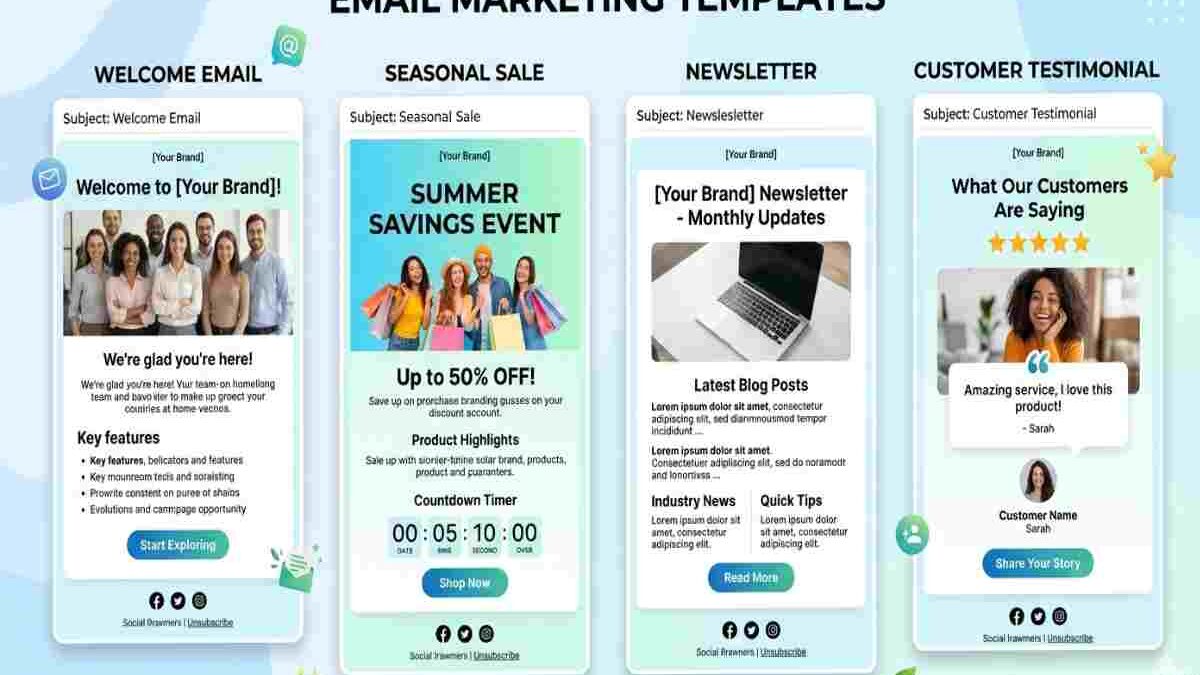
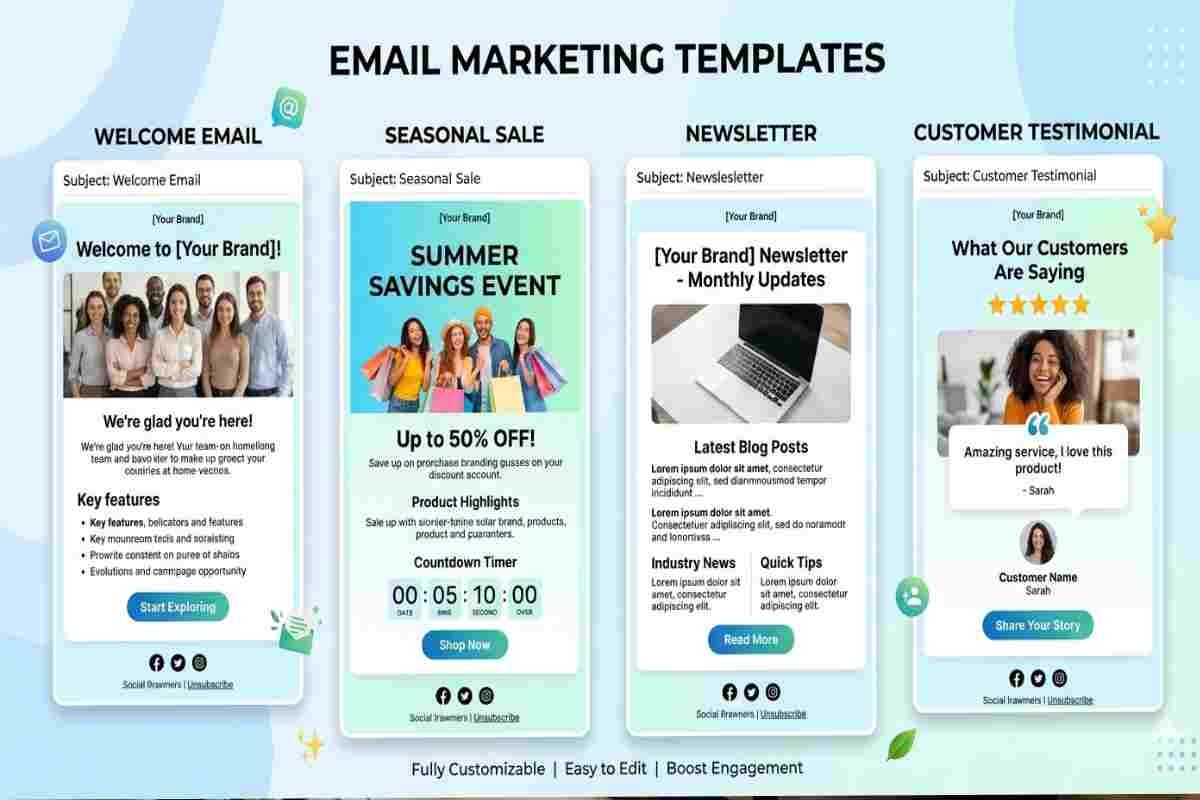
Email Marketing Templates are pre-designed, reusable email layouts that businesses use to send marketing messages quickly and consistently to subscribers or customers. Instead of creating every campaign from scratch, marketers customize a structured template by editing text, images, and calls-to-action to match their objective.
In simple terms, an email marketing template is a ready-made framework that helps you design professional emails faster while maintaining branding and performance standards.
What Do Email Marketing Templates Include?
Most professional templates are built with these components:
- Header – Logo, navigation links, brand identity
- Hero Section – Main image or headline
- Body Content – Offer details, announcements, product info
- Call-to-Action (CTA) – Button like “Shop Now” or “Learn More”
- Footer – Contact info, unsubscribe link, social media links
These elements are structured to improve readability, engagement, and conversions.
How does an Email Template Work?
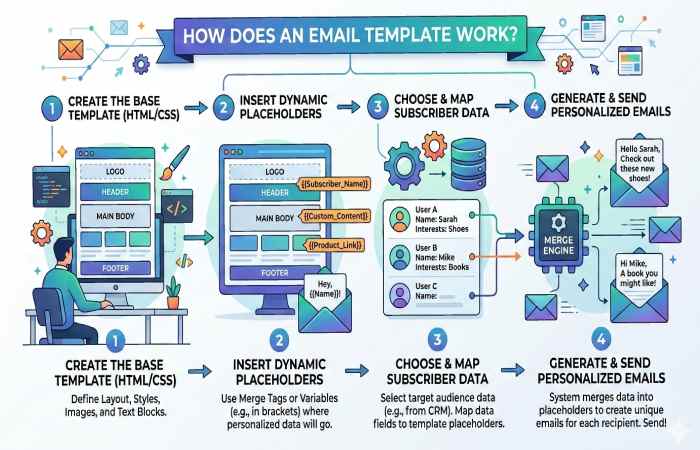
A template or mail template allows the creation of a copy of the model or guide to start without starting from scratch. It means that it works as a sketch or guide to generate emails by editing elements quickly.
The structure of the templates for email marketing campaigns depends on the campaign’s objective, but regularly, they follow a system.
Mail Template Structure
- Header Banner: Image includes your logo, brand name, and link to your online store or website.
- Personalized greeting: it is essential that the greeting includes the person’s name to make it closer. It means you raise your chances of receiving attention.
- Introduction: In the first words, you must explain the reason for the email. On some occasions, the introduction, body and farewell are integrated into one image.
- Body: with hook or call to action and the primary information of the email.
- Call to Action: It is also known as a call to action; it is one of the vital parts of an email marketing campaign. It is essential because this is where you convince or hook the recipient to perform the action you expect, be it subscribing, going to your store, or using a coupon, among others.
- Farewell: in it, you should take the opportunity to reinforce the objective call to action of your email, be it going to your store, subscribing, using a discount or coupon, etc.―.
- Footer: you must leave your information such as an address, telephone, institutional or support email and social networks.
Types of Email Marketing Templates
| Template Type | Primary Purpose | When to Use It | Key Elements Included | Best For |
| Welcome Email | Introduce your brand to new subscribers | Immediately after signup | Greeting, brand intro, value proposition, CTA | SaaS, eCommerce, blogs |
| Newsletter Template | Share updates, articles, or news | Weekly or monthly campaigns | Featured content blocks, images, links, social icons | Content creators, B2B, media brands |
| Promotional Email | Drive sales or conversions | Sales events, discounts, launches | Offer headline, product image, discount code, CTA button | Retail, eCommerce |
| Abandoned Cart Email | Recover incomplete purchases | 1–24 hours after cart abandonment | Product image, reminder text, urgency message, CTA | Online stores |
| Product Launch Email | Announce new products or services | Before or on launch date | Hero image, product benefits, CTA, countdown timer | eCommerce, startups |
| Re-engagement Email | Win back inactive subscribers | After 30–90 days of inactivity | Special offer, feedback request, CTA | SaaS, subscription businesses |
| Event Invitation Email | Promote webinars, events, or workshops | Before event date | Event details, date/time, registration CTA | B2B, coaches, educators |
| Transactional Email | Confirm actions (purchase, signup, reset) | After user action | Order summary, confirmation details, support info | All online businesses |
| Upsell / Cross-sell Email | Increase average order value | After purchase | Recommended products, personalized suggestions, CTA | eCommerce |
| Seasonal Campaign Email | Promote holiday or seasonal offers | Holidays, special occasions | Themed visuals, promotional offer, CTA | Retail, travel |
| Survey / Feedback Email | Collect customer insights | After purchase or service | Survey link, incentive, short message | SaaS, service providers |
| Drip Campaign Template | Nurture leads over time | Automated sequences | Educational content, soft CTA, progression logic | B2B, online courses |
Quick Breakdown by Goal
| Goal | Recommended Template Type |
| Build relationship | Welcome, Newsletter |
| Increase sales | Promotional, Abandoned Cart, Upsell |
| Boost engagement | Re-engagement, Survey |
| Educate audience | Drip Campaign |
| Promote events | Event Invitation |
| Confirm transactions | Transactional |
How to Create a Mail Template?
HTML Email Template
To create an HTML email template, it is necessary to know the code, but if you do not have previous knowledge; You can use an email marketing tool to add images, text, and your logo. This way, you will create a template from scratch with the help of technology to later export it in HTML.
But, what is the objective of exporting it? If you export the template, you can upload it to another email marketing tool or share it with a web designer so that they can use it as a base; that is, these templates will serve as a backup in case you change platforms or as a reference to work on new templates.
Email Template in Gmail
To create an email template in Gmail, you only need to follow a few relatively simple steps. I recommend the configuration of templates in Gmail for particular cases related to the administration of your business, but not for emailing campaigns.
For example, it is beneficial for your requests with suppliers to refer a client to the support area or when you need to send an email to a very small database.
Steps to create a mail template in Gmail:
- Sign in to Gmail. Activate the templates function. Go to Settings, See all settings, Advanced, and click Enable in the templates section. This way, you can add and edit templates from the mail editor.
- Go back to the Gmail main menu and click “Compose”.
- In the compose window, go to “More options” (the three dots next to the trash can) and select “Templates”.
- Since you don’t have templates yet, you’ll be able to add your template text and save the draft as your first template. Click “Save draft as template” and select “Save as new template”.
- Now add a name for your template and save it. Thus, every time you want to use that email template, it will appear with the name you chose in the “INSERT TEMPLATE” section of your editor.
- Don’t forget to set up your signature and use it when sending emails.
Mail Template in Outlook
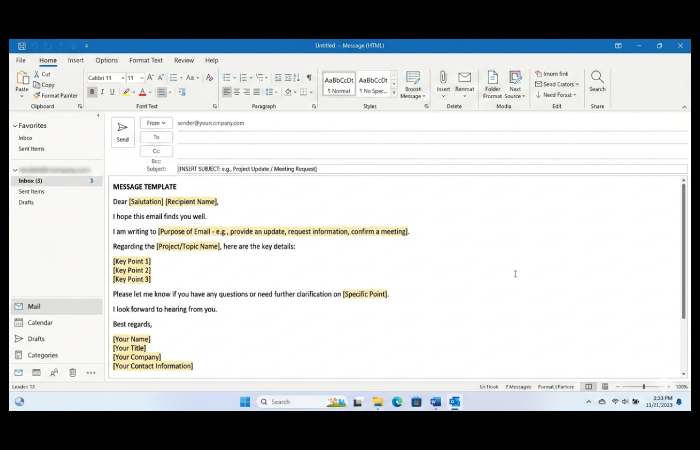
It is probably needless to remind you that it is not a good practice to use Outlook to send mass mailing campaigns, but I do not want you to forget it. Now that we have reviewed this, I leave you the procedure to create email templates in this tool.
Steps to create email templates in Outlook:
- Sign in to your Outlook account. Then, click on “New Message”.
- In the message editor, go to the 3 dots at the bottom of the editor, just below the formatting tools. Click and select “My templates”.
- If you haven’t set up templates before, it will open a help message on the right side of your screen. You will find recommendations on the use of images and their storage in it. When you finish reading, click “Continue”.
- Now, it will show you examples of useful templates. To create a new template, you have to select “Template”.
- Write the title and body of the template. You need to save it, and it will appear in your templates with the name you chose for it.
How to Make an Email With Design
To create an email with a design that works for your email marketing campaigns, there are two options.
- Design with the help of an email marketing tool: design a template from scratch from an email marketing platform like the ones mentioned above.
- Design from scratch: It is necessary to learn HTML code or hire a professional (web designer or programmer) to take care of the design, and I will give you the code you will insert in the mailing tool of your choice.
Both options are used and scalable for your business. But, first, identify your needs and the resources you have.
Email Template Tools Comparison
| Tool | Starting Price (USD / mo) | Free Plan | User Ratings | Strengths | Resource / Official Link |
| Mailchimp | ~$13/mo (500 contacts) / ~$20 standard | Yes (free up to 500 contacts) | 4.4/5 (G2) | Huge template library, AI tools, easy drag-and-drop editor | Official: https://mailchimp.com |
| Brevo | Free (300 emails/day) / ~$9–$20+ | Yes | 4.5/5 | Affordable per-email pricing, automation, SMS/WhatsApp | Official: https://brevo.com |
| ActiveCampaign | ~$19/mo (no free tier) | No | 4.5/5 | Advanced automation & CRM tools | Official: https://activecampaign.com |
| MailerLite | ~$10/mo | Yes (1,000 subs) | 4.7/5 | Clean, simple UI & great automation on free plan | Official: https://mailerlite.com |
| Omnisend | ~$16/mo | Yes | 4.6/5 | Email + SMS + push in one; great for ecommerce | Official: https://omnisend.com |
| GetResponse | ~$19/mo | Yes | 4.2/5 | Email + funnel + webinar tools | Official: https://getresponse.com |
| ConvertKit | ~$25–$29/mo | Yes | 4.5/5 | Creator-centred with automation & landing pages | Official: https://convertkit.com |
| Klaviyo | ~$20/mo | Yes (limited) | 4.6/5 | Deep ecommerce segmentation & predictive analytics | Official: https://klaviyo.com |
| Constant Contact | ~$10–$35–$80+ | No (trial) | 4.0/5 | Easy to use, strong support, event features | Official: https://constantcontact.com |
| HubSpot (Marketing Hub) | ~$20/mo | Yes (basic) | 4.4/5 | Enterprise CRM + email + analytics | Official: https://hubspot.com |
| Sender | ~$7/mo | Yes | 4.8/5 | Excellent value with generous free tier | Official: https://sender.net |
Common Mistakes to Avoid in Email Marketing Templates
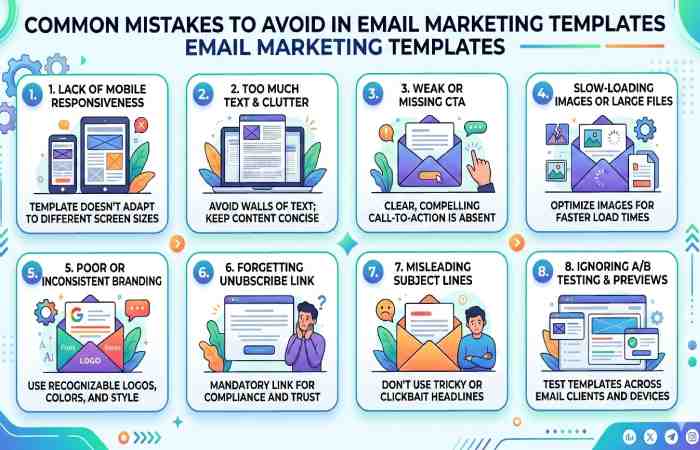
Even the best email marketing templates can underperform if they’re poorly executed. Below are the most common mistakes businesses make—and how to avoid them.
Overcrowded Design
Mistake: Too many images, buttons, colors, or text blocks in one email.
Why it hurts: Confuses readers and lowers click-through rates.
Fix:
- Use a clean, single-column layout
- Focus on one primary goal per email
- Maintain white space
Weak or Multiple CTAs
Mistake: Including 3–5 different calls-to-action in one campaign.
Why it hurts: Reduces clarity and conversion.
Fix:
- Use one primary CTA
- Make it visually distinct
- Place it above the fold
Example of a strong CTA:
- “Shop Now”
- “Get Your Free Trial”
- “Claim 20% Off Today”
Not Mobile-Optimized
Mistake: Designing emails only for desktop.
Reality: Over 55% of emails are opened on mobile.
Fix:
- Use responsive HTML templates
- Keep subject lines under 40 characters
- Use buttons at least 44x44px
Poor Subject Lines
Mistake: Generic or spammy subject lines like “BUY NOW!!!”
Why it hurts: Low open rates or spam filtering.
Fix:
- Keep it clear and curiosity-driven
- Use personalization tokens
- Avoid excessive capitalization or symbols
Good example:
- “John, Your 20% Discount Expires Tonight”
Ignoring Personalization
Mistake: Sending the same email to your entire list.
Why it hurts: Lower engagement and higher unsubscribe rates.
Fix:
- Segment by behavior
- Use first-name personalization
- Send relevant offers
Too Image-Heavy
Mistake: Sending one large image with little or no text.
Why it hurts:
- Images may not load
- Higher spam risk
- Accessibility issues
Fix:
- Maintain a 60% text / 40% image balance
- Add alt text for every image
Missing Alt Text
Mistake: No description for images.
Why it hurts: If images don’t load, users see blank spaces.
Fix:
- Always add descriptive alt text
Example:
alt=”Summer Sale – 30% Off All Shoes”
No Clear Unsubscribe Option
Mistake: Hiding or removing the unsubscribe link.
Why it hurts:
- Violates CAN-SPAM and GDPR
- Increases spam complaints
Fix:
- Place unsubscribe link clearly in the footer
- Make it easy and transparent
Not Testing Before Sending
Mistake: Sending without testing across devices or inboxes.
Why it hurts: Broken links, layout errors, or formatting issues.
Fix:
- Send test emails
- Check Gmail, Outlook, and mobile devices
- Test all links
Inconsistent Branding
Mistake: Changing fonts, colors, and tone in every campaign.
Why it hurts: Reduces brand recognition.
Fix:
- Use consistent brand colors
- Standardize header and footer
- Create a master template
Email Marketing Template Optimization Checklist
Use this table before sending any campaign to ensure your email template is optimized for engagement, deliverability, and conversions.
| Category | Checklist Item | Why It Matters |
| Subject Line | Subject line under 40–50 characters | Prevents truncation on mobile |
| Personalized (name, location, behavior) | Increases open rates | |
| No spam-trigger words (FREE!!!, BUY NOW) | Improves deliverability | |
| Preheader Text | Supports subject line | Boosts open rate |
| Under 90 characters | Optimized for mobile preview | |
| Design & Layout | Single-column responsive layout | Better mobile readability |
| Clean spacing and white space | Improves readability | |
| Consistent branding (logo, colors, fonts) | Builds brand trust | |
| Images | Compressed for fast loading | Reduces bounce rate |
| Alt text added to all images | Accessibility & fallback | |
| Balanced 60:40 text-to-image ratio | Avoids spam filters | |
| Call-to-Action (CTA) | One primary CTA | Clear conversion goal |
| CTA above the fold | Visible without scrolling | |
| Button size minimum 44x44px | Mobile-friendly tap target | |
| Content | Clear value proposition | Increases engagement |
| Short paragraphs (2–3 lines max) | Easier scanning | |
| Personalization tokens tested | Avoids “Hi {{FirstName}}” errors | |
| Links | All links tested | Prevents broken experience |
| UTM tracking added | Measures campaign performance | |
| Deliverability | SPF, DKIM, DMARC configured | Prevents spam filtering |
| Clean email list (no inactive contacts) | Protects sender reputation | |
| Compliance | Visible unsubscribe link | Legal requirement |
| Physical business address included | CAN-SPAM compliance | |
| GDPR consent verified (if applicable) | Legal compliance | |
| Testing | Tested on Gmail | Ensures compatibility |
| Tested on Outlook | Prevents layout issues | |
| Tested on mobile devices | Optimizes user experience | |
| A/B test prepared (if applicable) | Improves performance | |
| Analytics | Conversion goal defined | Clear campaign objective |
| KPIs identified (Open, CTR, CVR) | Data-driven optimization |
Conclusion
Email templates for email marketing campaigns are a model or guide that speeds up sending mass emails to customer bases. The resolve of these emails is to share information with many contacts so that they take action.